Initial Configuration
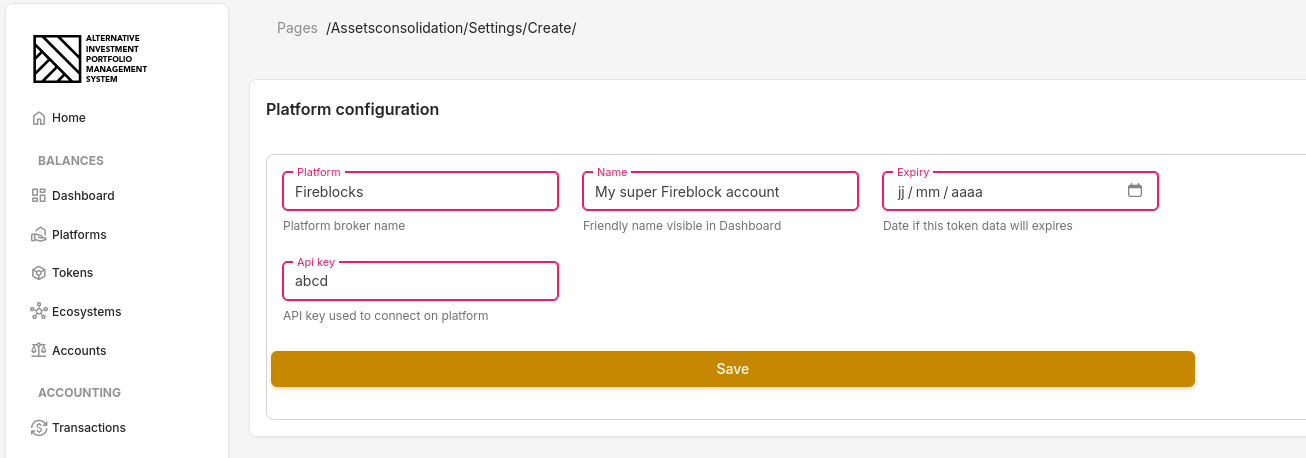
In this chapter, we'll review the initial setup for configuring API keys.
Requirements
- You must have the appropriate permissions to configure API keys in the settings.
Configure CoinGecko Key
AIPMS uses CoinGecko as its primary data source. When a new token is detected, the system will automatically attempt to retrieve its data and create it within the app.
You need at least a free CoinGecko API key, though a Pro key is strongly recommended. Here are the steps to generate and configure your CoinGecko key:
- Open the Developer Dashboard: https://www.coingecko.com/en/developers/dashboard
- Register or log in to CoinGecko.
- On the left side of the dashboard, click + Add New Key and copy the newly created key.
- In AIPMS, navigate to Settings > API Keys.
- Click the small pencil icon next to CoinGecko, and paste the copied key.
- Specify whether the key is free or Pro, then click Save.
Configure CoinMarketCap Key
If a token is not found on CoinGecko, AIPMS will fall back to CoinMarketCap as a secondary source.
You’ll need at least a free CoinMarketCap API key, though a Pro key is strongly recommended. Here are the steps to generate and configure your CoinMarketCap key:
- Open the Developer Dashboard: https://pro.coinmarketcap.com/account
- Register or log in to CoinMarketCap.
- From the Overview section, click Regenerate Key and copy the key.
- In AIPMS, go to Settings > API Keys.
- Click the small pencil icon next to CoinMarketCap, and paste the copied key.
- Click Save.
Notes
AIPMS will automatically verify whether the API keys are valid. If a key is invalid, it will not be saved.